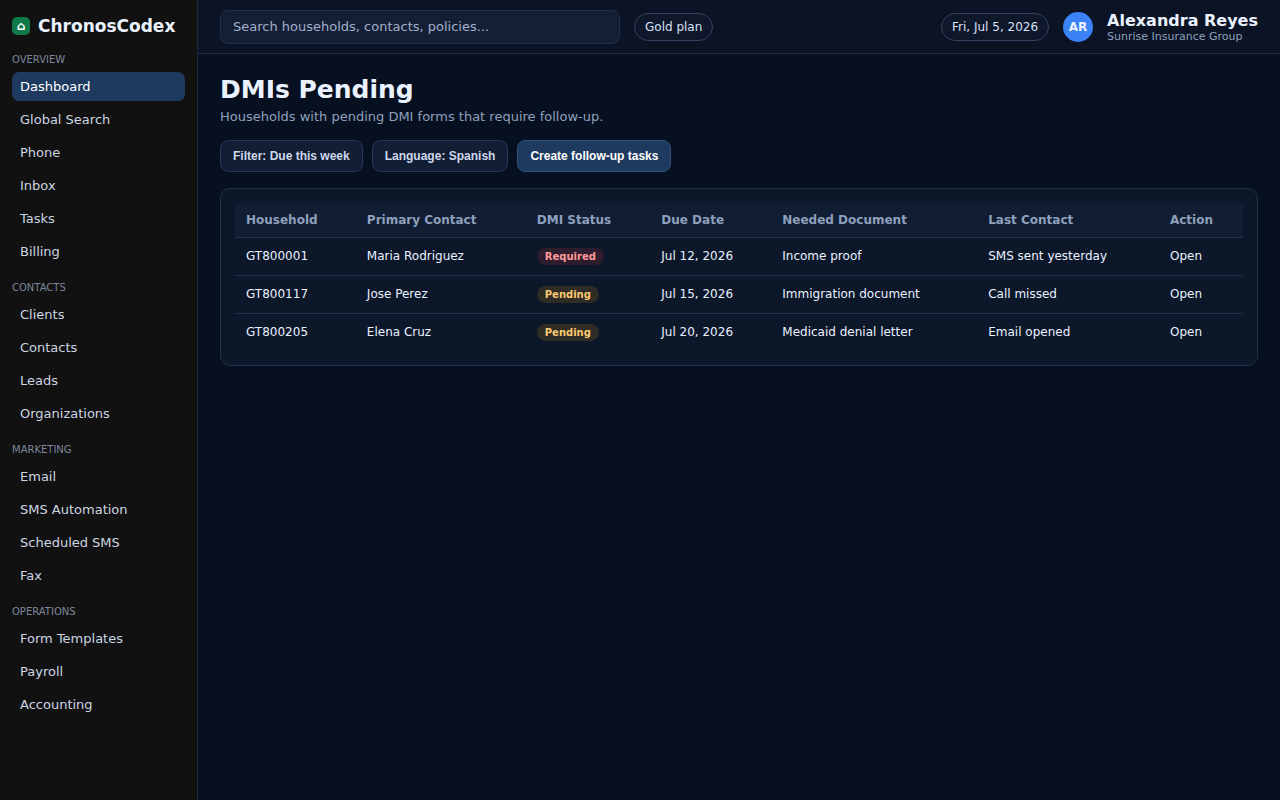
DMI tracking helps agents identify documentation requests, due dates, and follow-up work before coverage is affected.
Before You Start
- Open the correct household.
- Know the DMI type, due date, marketplace/carrier note, and client document needed.
Step-by-Step
- Open the household profile.
- Review the DMI status in the household header and coverage summary.
- Open the task, notes, or documents area connected to the DMI.
- Record the DMI type, due date, and exact document requested.
- Create a follow-up task before the due date.
- Contact the client by SMS, phone, or email using the preferred language.
- Attach received documents to the household.
- Update the DMI status after the document is submitted or no longer required.
Confirm It Worked
- The household DMI status matches the actual case state.
- A due-date task exists if work is still pending.
- Submitted documents are attached to the household.
Common Issues
- If the DMI status is wrong after an import, update the household manually and leave a note.
- If the client sent the wrong document, create a new follow-up task.
- If the deadline is close, escalate according to agency policy.
Need help or see a different screen? Reply below with the page you are on and what you expected to happen.

ChronosCodex — The Complete Insurance Management System for Agencies
chronoscodex.com