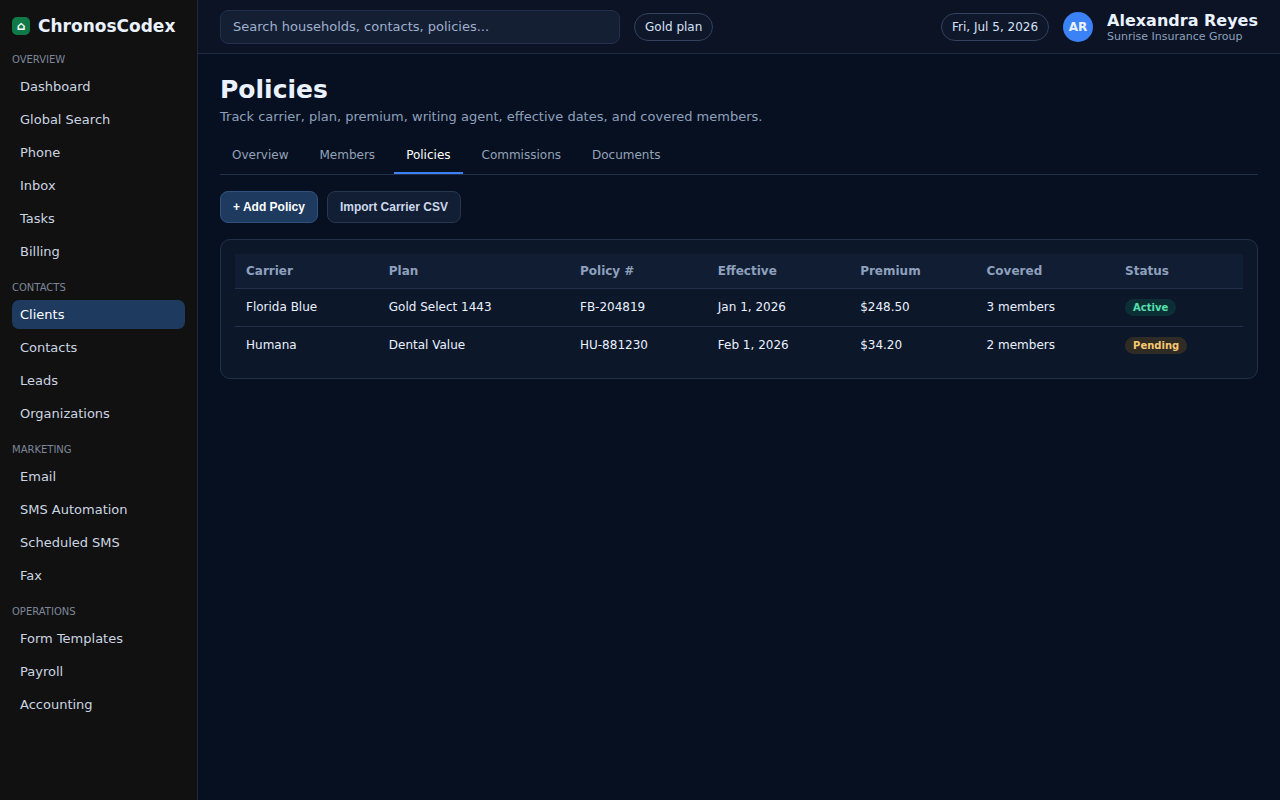
Policies connect coverage details to a household so renewals, premium tracking, commissions, and service work stay organized.
Before You Start
- Open the household.
- Have carrier, plan, effective date, premium, policy number, and coverage members ready.
- Confirm the household members are already entered.
Step-by-Step
- Open the household profile.
- Select the Policies tab.
- Choose the add policy action.
- Select policy type and carrier.
- Enter policy number, effective date, premium, status, and plan notes.
- Attach covered members when the policy applies to more than the primary contact.
- Save the policy and return to the household overview.
- Add a renewal or follow-up task if action is needed later.
Confirm It Worked
- The policy count increases on the household header.
- The policy appears in the Policies tab.
- Premium, carrier, and status are visible for future service work.
Common Issues
- If the carrier is missing, ask an admin to update organization/carrier records.
- If commission tracking matters, verify the writing agent and effective date.
- If the policy is pending, set the correct status instead of marking it active.
Need help or see a different screen? Reply below with the page you are on and what you expected to happen.

ChronosCodex — The Complete Insurance Management System for Agencies
chronoscodex.com